Supplier help centre

From application to your first payout

Follow these steps in order. Each one tells you where to go, what to do, what you should see, and how to know that the step is finished.

Need help with the first upload?

We can stage products from an authorised website, spreadsheet, or product feed. You review everything before it goes live.

Contact onboarding support

Start here

Complete these eleven steps in order.

You can stop after any completed step and return later. Keep this page open while you work through your first product, order, and payout.

01

Send your supplier application

Go to: Supplier application

Open the application

Do this

Open the supplier page, choose Apply as a supplier, complete every required business, catalogue, shipping, and returns field, then submit the form.

You should see

A confirmation that your application has been received.

Finished when

Your application is submitted and Catwalk Dropship has your correct contact email.
02

Accept your email invitation

Go to: Email, then supplier sign in

Supplier sign in

Do this

After approval, open the invitation sent to your approved email address, choose Accept invitation, create your password, and sign in.

You should see

The Catwalk Dropship supplier dashboard with your business name.

Finished when

You can sign out and sign back in at the supplier sign-in page.

03

Complete your operating settings

Go to: Settings

Open supplier settings

Do this

Open Settings. Add your warehouse, returns address, returns policy, and dispatch time. Confirm that you can ship individual units and use plain, retailer-friendly packaging, then choose Save settings.

You should see

Your saved business and fulfilment information remains visible after the page reloads.

Finished when

The dashboard no longer asks for missing operating details.

04

Connect your payout account

Go to: Payouts

Open payouts

Do this

Open Payouts and choose Set up payouts with Stripe. Complete Stripe business verification and add the bank account that should receive supplier payouts.

You should see

You return to Catwalk Dropship and the payout panel updates after Stripe has checked the details.

Finished when

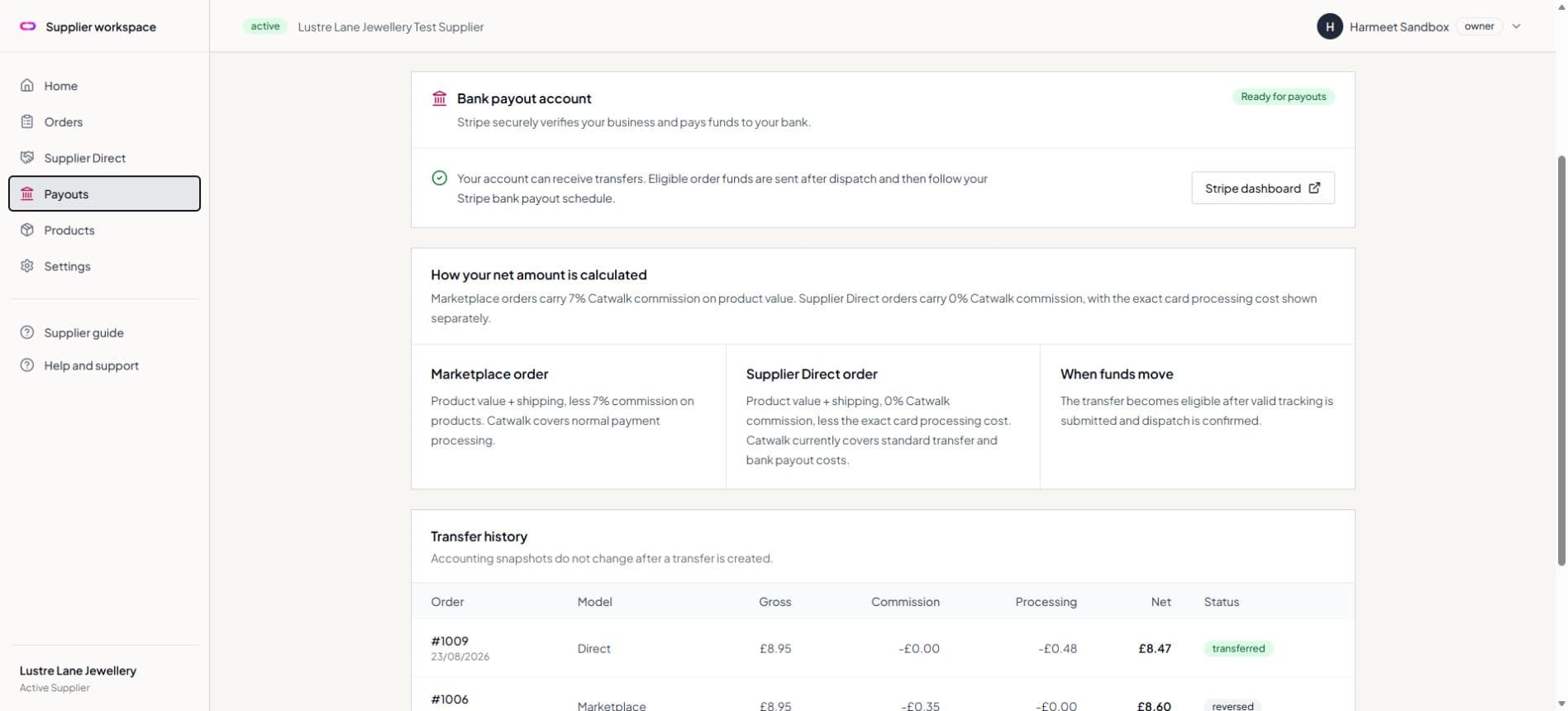
The Payouts page shows Ready for payouts.

05

Wait for supplier activation

Go to: Dashboard and email

Do this

Catwalk Dropship checks the saved operating details and confirms individual-unit and plain-dispatch readiness. Respond if the onboarding team asks for clarification.

You should see

Your supplier status changes to active and the Add product action becomes available.

Finished when

You can open the new product form from the supplier dashboard or Products page.

06

Create your first product

Go to: Products

Add a product

Do this

Open Products, choose Add product, enter the product, pack, stock, image, and variant information, then choose Create product. Ask us to stage an authorised catalogue if you prefer assisted onboarding.

You should see

The product appears in Products with its single-unit cost, stock, and review status.

Finished when

Every variant, pack ratio, price, image, and stock figure is correct.

07

Complete catalogue review

Go to: Products and email

Do this

Catwalk Dropship checks the product rights, pack conversion, pricing, stock, and customer-facing information. Respond if the onboarding team asks for a correction.

You should see

The product status changes from draft or review to live when it is approved.

Finished when

Your supplier account is active and at least one product is live for retailers.

08

Open your first paid order

Go to: Orders

Open supplier orders

Do this

When an order arrives, open Orders and select the order marked Ready to dispatch. Check the individual items, quantities, delivery address, and shipping service before packing.

You should see

Only the paid items assigned to your business are shown.

Finished when

The items and address match what your warehouse is preparing to send.

09

Dispatch and add tracking

Go to: Order details

Do this

Pack the individual units without wholesale paperwork. Select the carrier, enter the tracking number and URL, choose Mark dispatched, then review and choose Confirm dispatch.

You should see

The order changes to Dispatched and shows the tracking details you entered.

Finished when

The parcel has physically left your warehouse and the Shopify fulfilment has been created.

10

Follow the transfer and bank payout

Go to: Payouts

View payouts

Do this

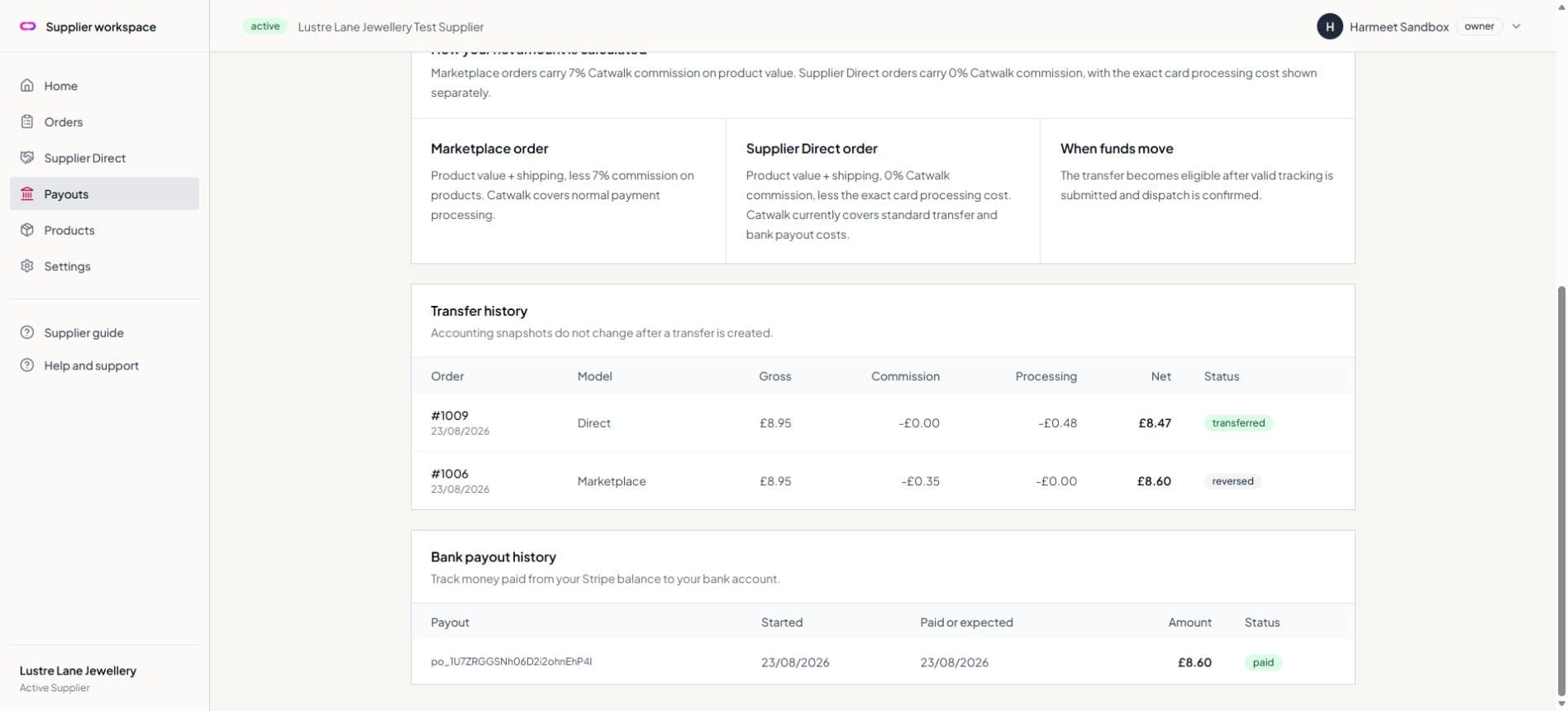
Return to Payouts. Open the order transfer to see product value, shipping, commission, processing where applicable, and net due. Follow the separate bank payout status.

You should see

The order transfer appears first, followed by the Stripe bank payout according to your payout schedule.

Finished when

The payout is marked paid and the money appears in your nominated bank account.

11

Invite your existing retailers

Go to: Supplier Direct

Open Supplier Direct

Do this

Open Supplier Direct, create or copy your retailer invitation link, and share it with genuine new retailers who already buy from you.

You should see

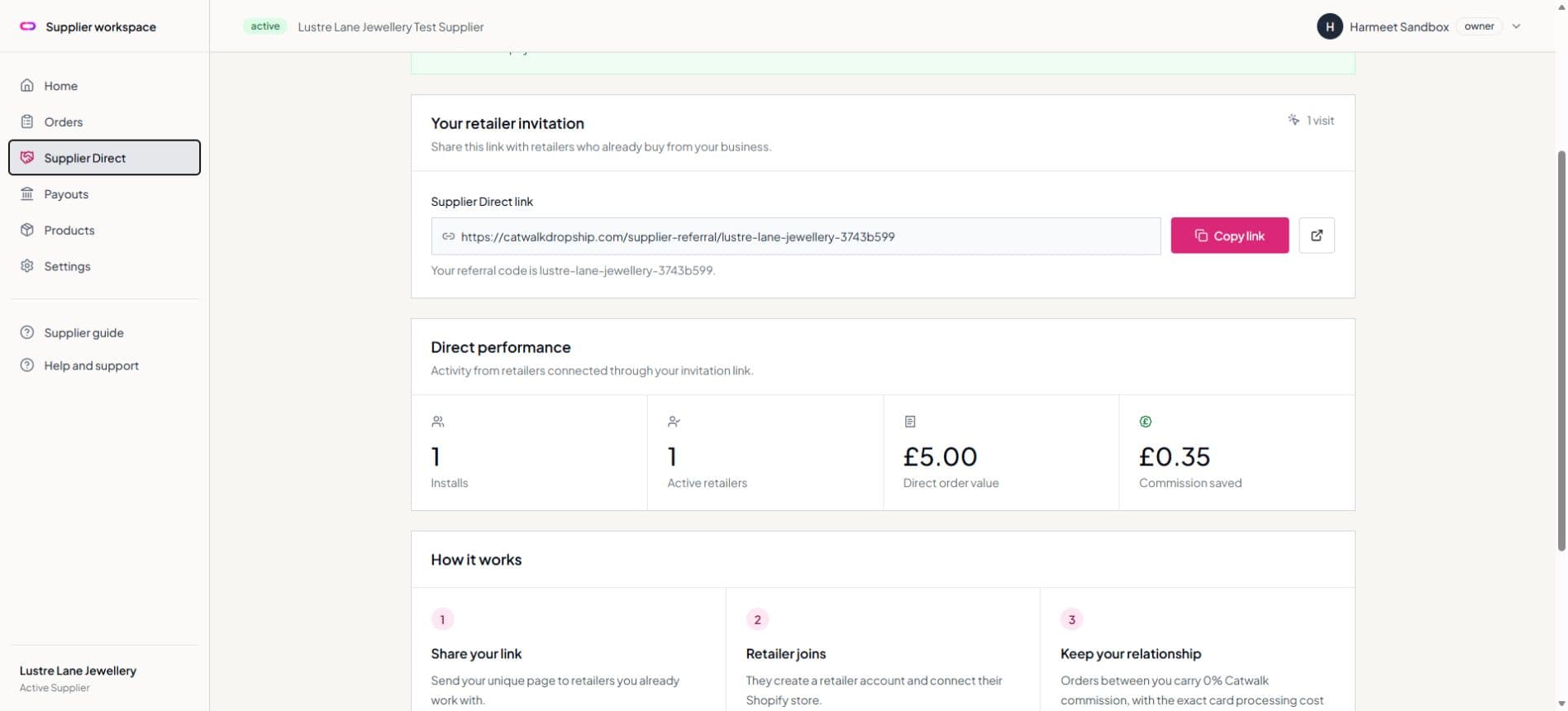
The Supplier Direct dashboard records visits, installs, active retailers, order value, and commission saved.

Finished when

Your link is active and ready to share with retailers.

Before you apply

Prepare the information we will review.

You do not need to rebuild your existing wholesale catalogue. Start with accurate source data and tell us where you need support.

Your legal business and contact details

Warehouse and returns addresses

Your normal dispatch time in working days

Product images, descriptions, pack prices, and stock

Confirmation that you can pick and dispatch individual units

Confirmation that parcels can be sent without supplier invoices or promotions

Application and access

Four steps into your supplier workspace.

01

Apply as a supplier

Complete the supplier application with your business, catalogue, dispatch, returns, and pack information. Tell us if you would like help importing your catalogue.

Apply as a supplier
02

Complete our review

We check product fit, single-unit fulfilment, stock information, shipping readiness, and how your catalogue should be prepared. We will contact you if anything needs clarification.

03

Accept your invitation

Approved suppliers receive a Catwalk Dropship invitation by email. Open the secure invitation, create your password, and sign in to the supplier workspace.

Supplier sign in
04

Finish your operating profile

Add your warehouse and returns details, returns policy, dispatch time, and contact information. Confirm individual-unit fulfilment and plain, retailer-friendly dispatch before activation.

Your invitation is personal to your approved email address. Do not forward it or share your password. Contact us if the invitation has expired or the wrong person received it.

Products and packs

Turn wholesale packs into accurate single-unit stock.

Catwalk Dropship lists individual sellable units. The portal keeps the original pack information so stock can be calculated without asking you to maintain two catalogues.

Product details

Title, description, category, brand, product images, and an authorised source reference.

Pack details

Wholesale pack price, units in each pack, and the number of unopened packs currently available.

Variants

Colour, size, pack ratio, single-unit retail price, weight, barcode, and optional variant image.

Stock

The portal converts pack stock into available single units using each variant ratio.

Pack conversion example

A jewellery style arrives as a six-piece pack containing three colour variants.

Source pack

Pack price
£36
Units per pack
6
Pack ratio
2 gold, 2 silver, 2 rose gold
Packs in stock
4

Portal calculation

Wholesale unit cost
£6
Gold available
8 units
Silver available
8 units
Rose gold available
8 units

List products yourself

After activation, open Products, choose Add product, enter the source and pack information, add every variant, and save. New products are held for catalogue review before publication.

Let us stage the catalogue

Give written permission for an authorised website, spreadsheet, CSV, or feed. We prepare the draft catalogue, then you check titles, variants, pack ratios, stock, prices, images, and product rights before approval.

The screens below use a fictional supplier, customer, order, and Stripe sandbox account. No live bank or customer data is shown.

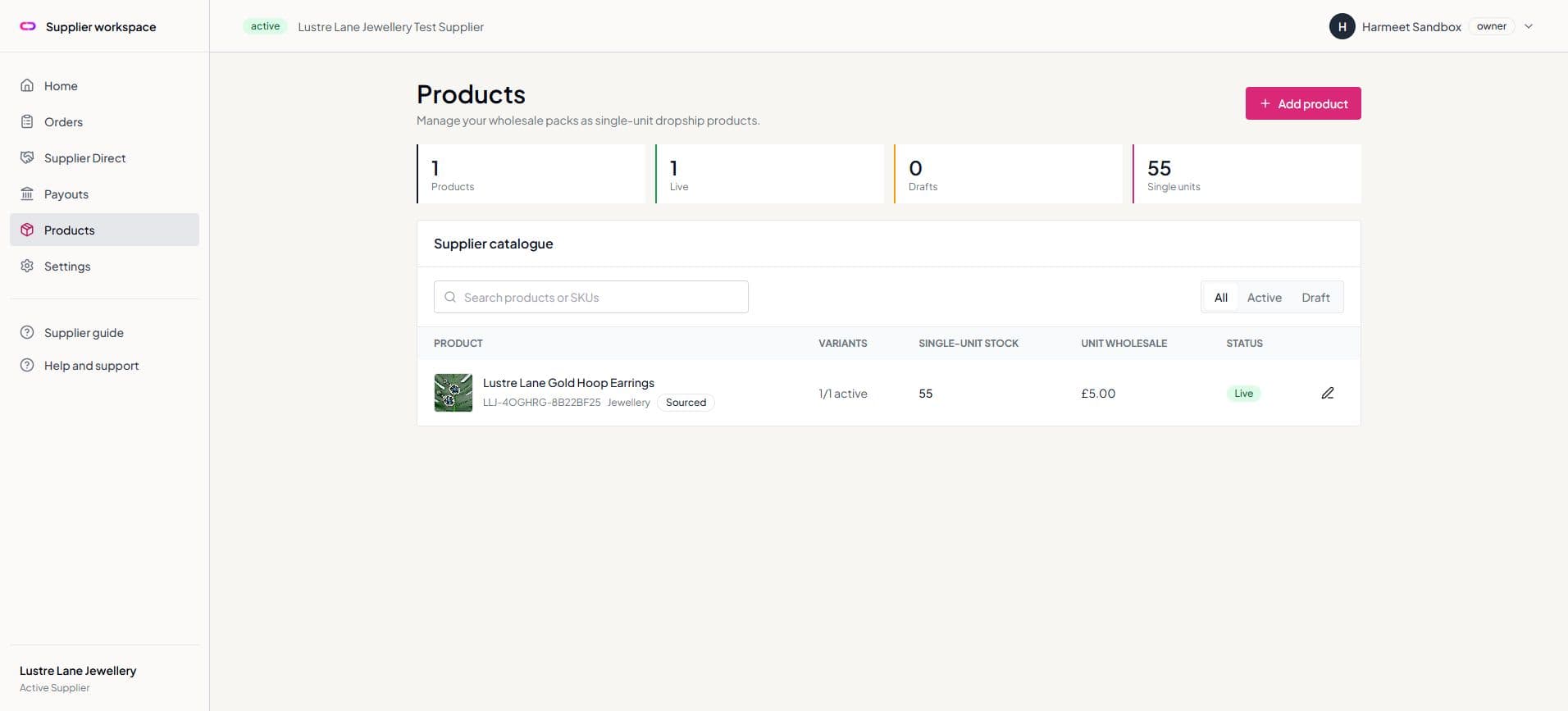
Supplier product catalogue with stock, pricing, and publication status

Manage your supplier catalogue

Search products, review single-unit stock and unit wholesale cost, and see whether each item is draft or live.

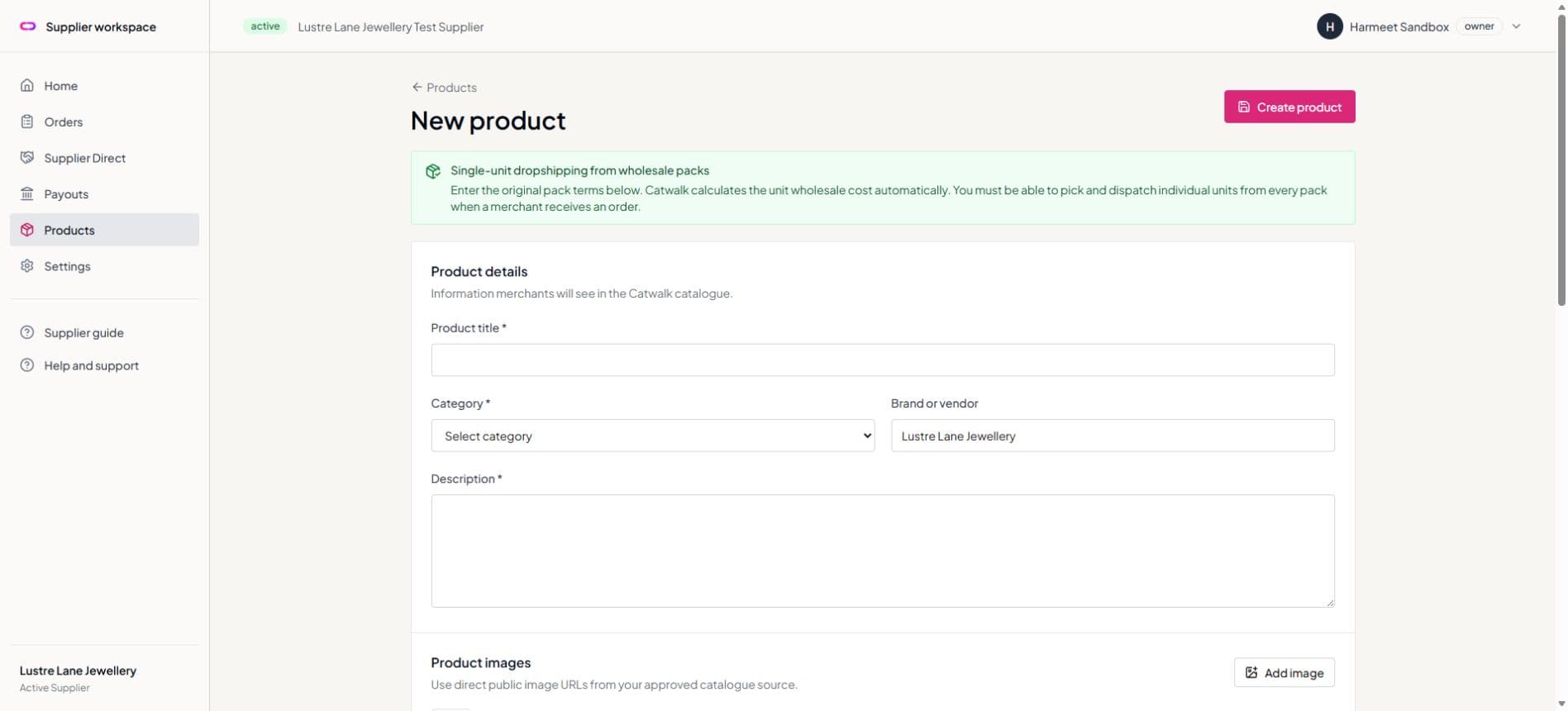
New supplier product form for product, pack, stock, and variant details

Enter the product and pack terms

Start with the product information, then add pack price, pack size, stock, ratios, and every sellable variant.

Never send us your ecommerce password. For assisted onboarding, provide an export, feed, or written permission to use publicly accessible catalogue content and images.

Orders and dispatch

Ship only paid items assigned to you.

Multi-supplier customer orders are separated. Your workspace contains your products, your shipping address, and your dispatch action only.

1

Open the paid order

Only orders that are ready for supplier action appear as Ready to dispatch. You see only the products assigned to your business.

2

Pick individual units

Use the SKU, variant, quantity, and delivery address shown on the order. Do not include wholesale pack quantities unless the customer ordered them.

3

Pack for the retailer

Use plain packaging. Do not include your wholesale invoice, wholesale prices, promotional leaflets, or supplier branding unless agreed.

4

Add tracking

Choose the carrier, enter the tracking number, and add the tracking URL when available. Leave customer notification enabled unless instructed otherwise.

5

Mark dispatched

Check the parcel has left your warehouse, then confirm dispatch. Catwalk Dropship creates the Shopify fulfilment for your items and sends the tracking update.

Once dispatch is confirmed, the tracking details are stored against your supplier order and synchronised to Shopify for the relevant customer items.

The screens below use a fictional supplier, customer, order, and Stripe sandbox account. No live bank or customer data is shown.

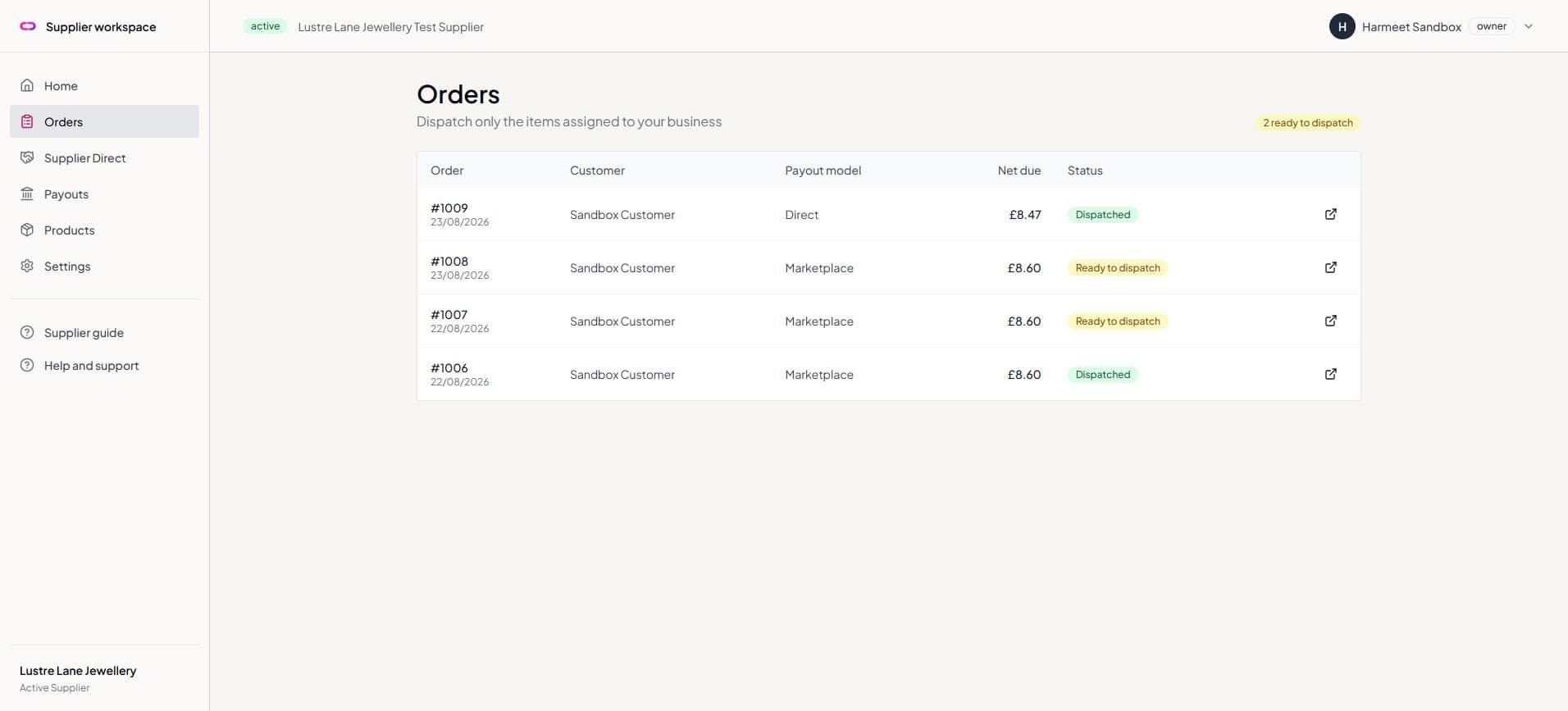
Supplier order list showing Direct and marketplace orders

1. Open a ready order

The order list separates payout models and shows the exact net due for each supplier order.

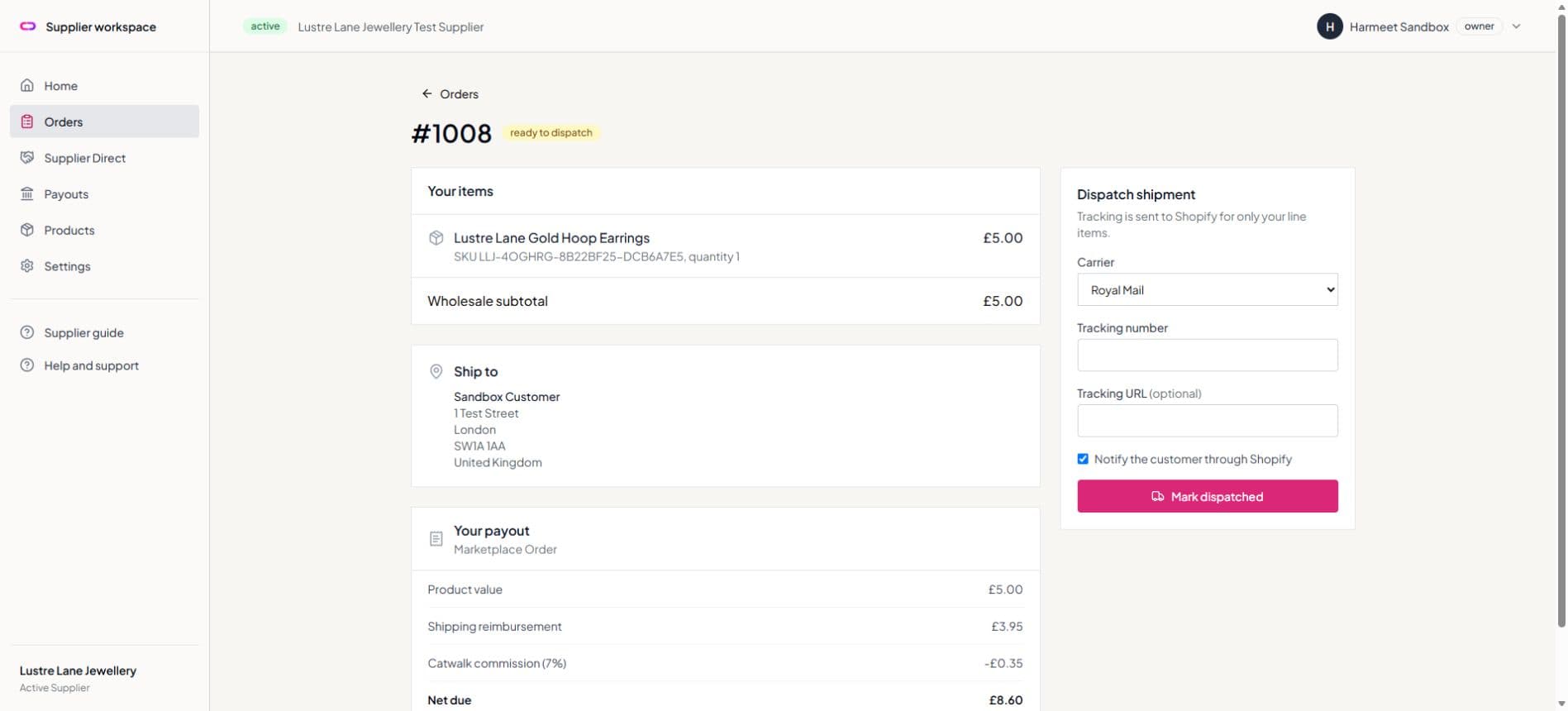
Supplier dispatch form with carrier and tracking fields

2. Add the carrier and tracking

Check the items and delivery address before entering the parcel tracking details.

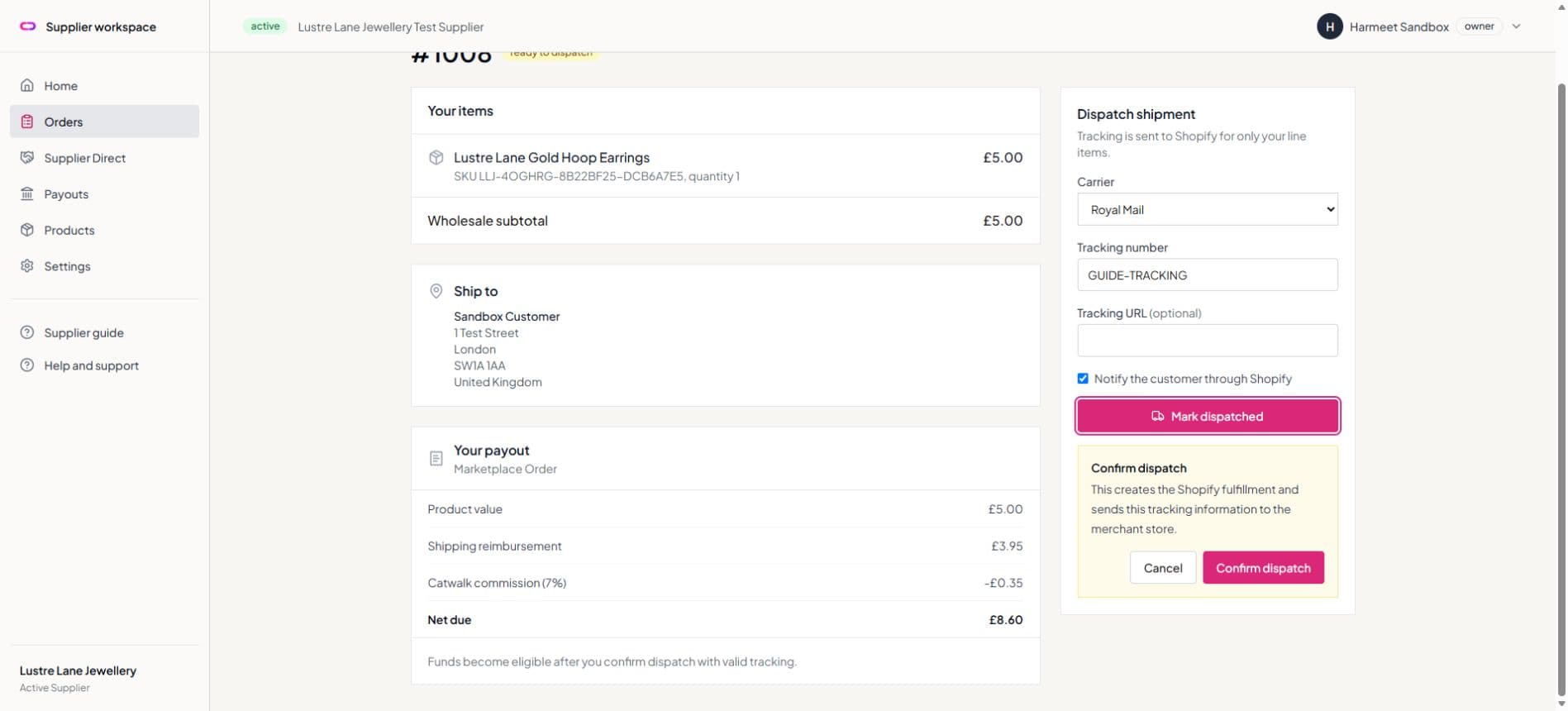
Confirmation panel before dispatch is sent to Shopify

3. Confirm dispatch

A second confirmation prevents accidental Shopify fulfilments or customer notifications.

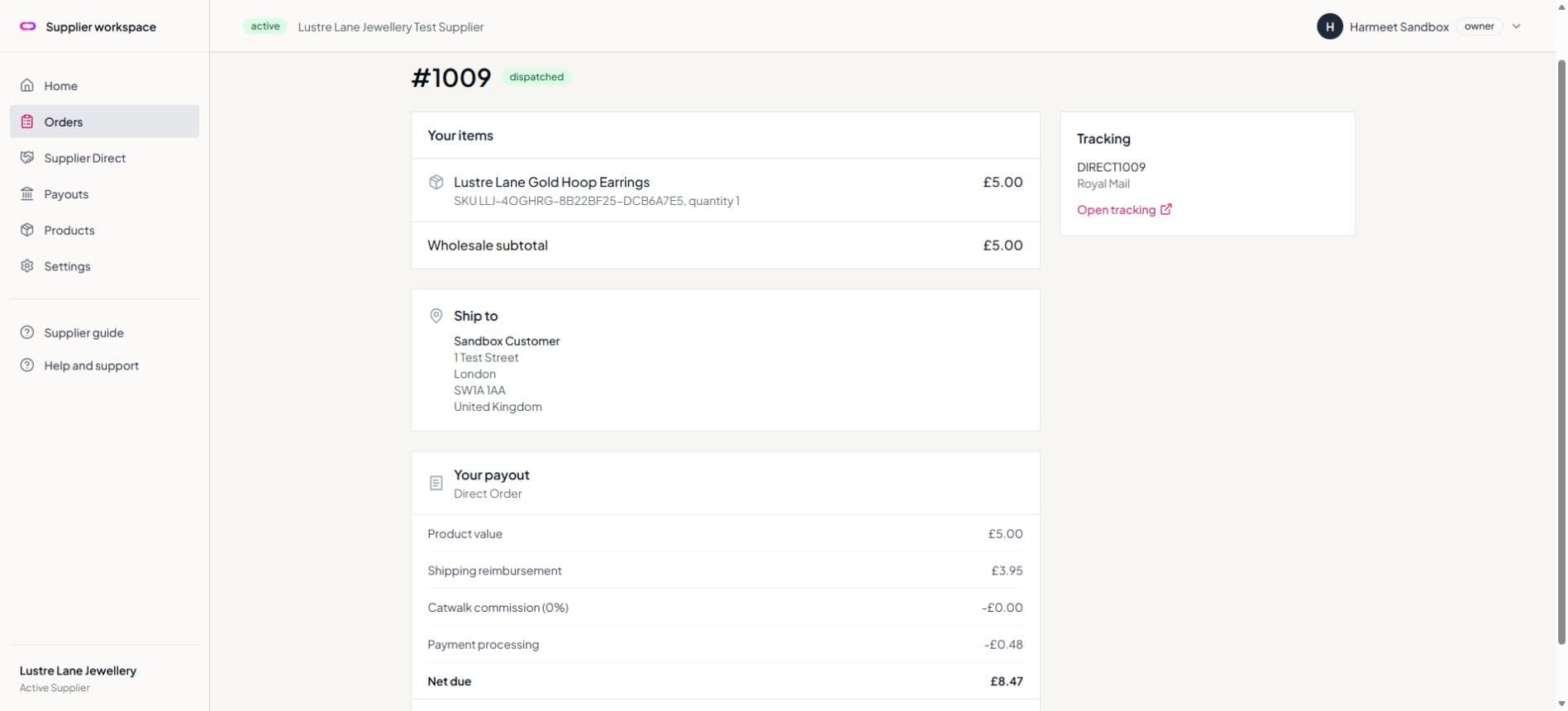
Dispatched supplier order with tracking and final payout calculation

4. Review the completed shipment

The final order shows tracking, commission, card processing where applicable, and net due.

Fees and payouts

See every deduction before funds move.

Approved suppliers connect a bank payout account through Stripe. Catwalk Dropship never asks you to send bank details by email or stores your full bank account details.

Marketplace sales

7% Catwalk commission on product value. Normal payment processing is included; shipping reimbursement is not commissionable.

Supplier Direct

0% Catwalk commission for qualifying retailers who join through your link and maintain an active paid app plan. The exact card processing cost is deducted; Catwalk currently covers standard transfer and bank payout costs.

Getting paid

Your transfer becomes eligible after valid tracking is entered and dispatch is confirmed. The Payouts page shows gross value, shipping, commission, processing, and net due.

The screens below use a fictional supplier, customer, order, and Stripe sandbox account. No live bank or customer data is shown.

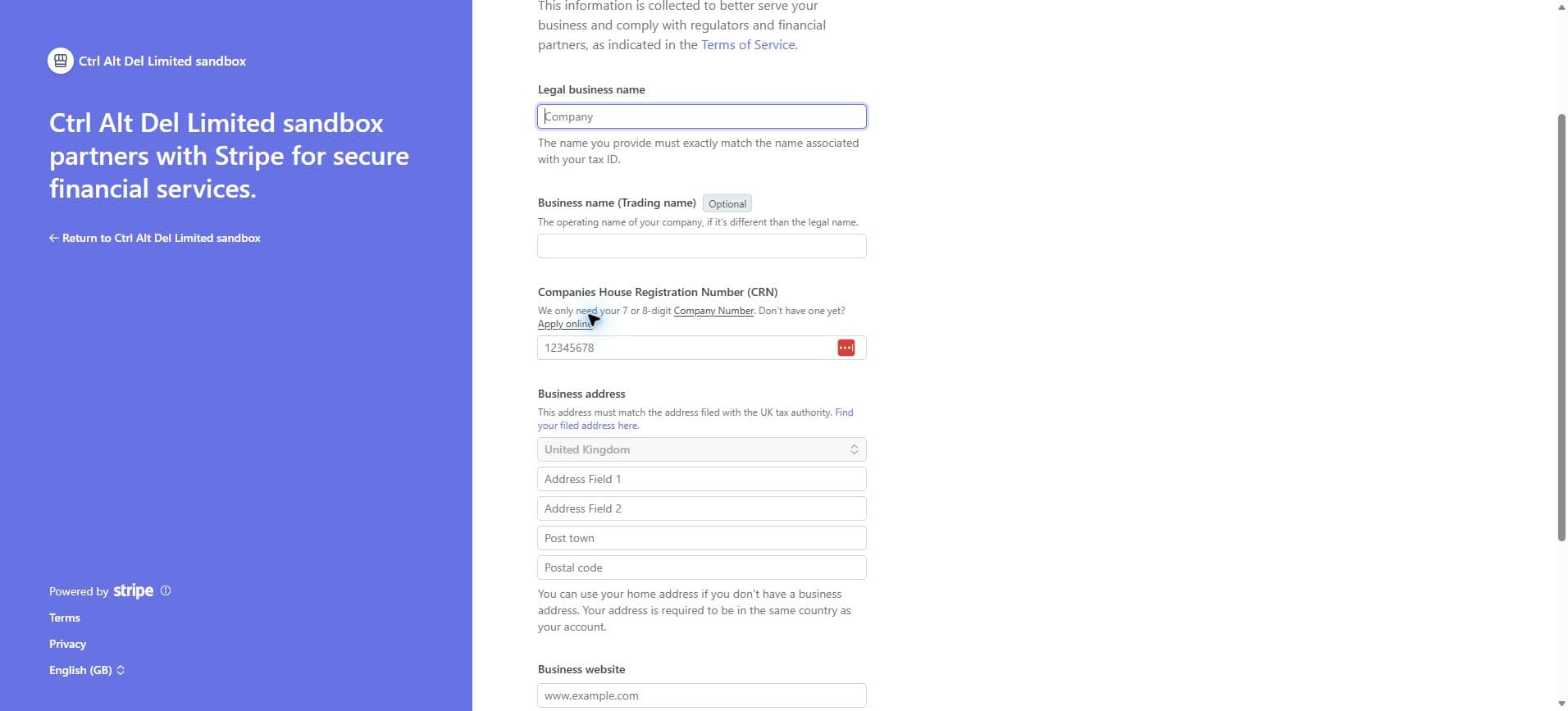
Stripe Connect onboarding form for supplier business details

1. Verify the supplier business

Stripe securely collects the legal and representative information required for marketplace payouts.

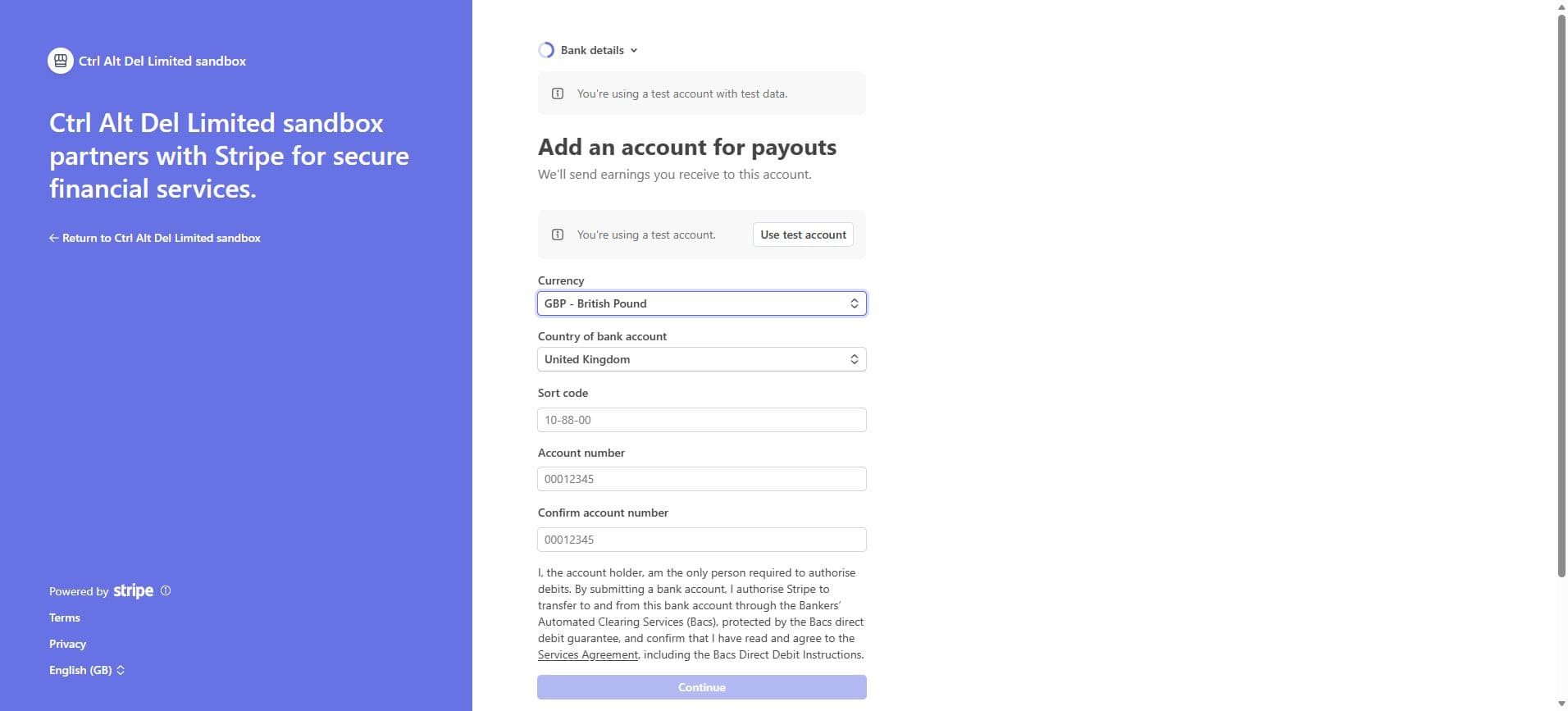
Stripe Connect form for the supplier bank payout account

2. Add the bank payout account

Bank details are entered directly into Stripe and are not stored in full by Catwalk Dropship.

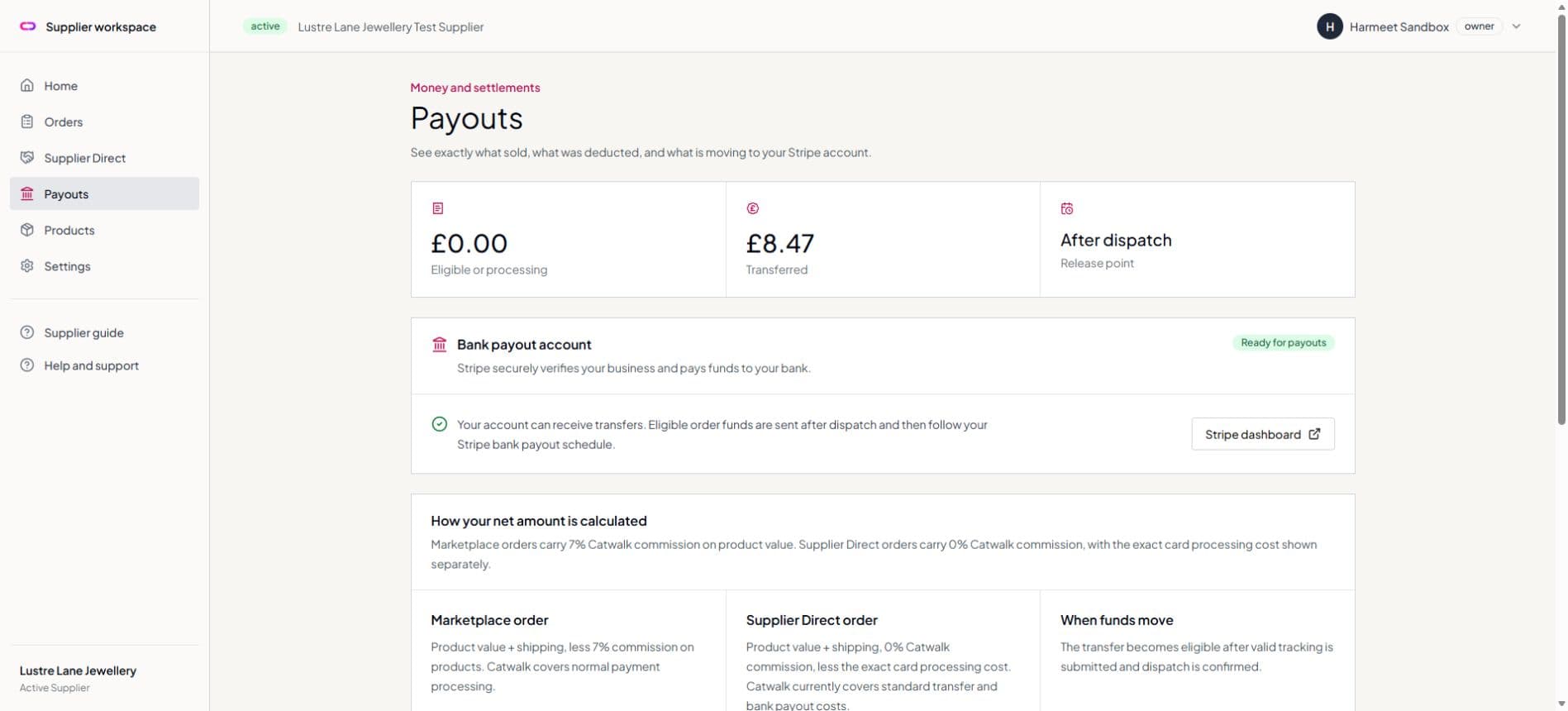
Supplier payout page showing a Stripe account ready for payouts

3. Confirm the payout account is ready

Stripe verifies the supplier and confirms when the connected account can receive transfers.

Supplier transfer history with marketplace and Direct calculations

4. Follow order transfers

Gross value, commission, processing costs, net amount, and transfer status remain visible for reconciliation.

Supplier bank payout history showing a paid Stripe payout

5. Follow bank payouts

Completed Stripe payouts appear separately so suppliers can follow money from order transfer to their bank.

Supplier Direct

Bring your retailer relationships with you.

Every active supplier receives a unique invitation page. A qualifying retailer who joins through that page can buy your products with 0% Catwalk commission while their paid app plan remains active. The exact card processing cost is shown separately.

The screens below use a fictional supplier, customer, order, and Stripe sandbox account. No live bank or customer data is shown.

Supplier Direct dashboard with referral performance

Share and measure your invitation

The dashboard tracks visits, installs, active retailers, Direct order value, and commission saved.

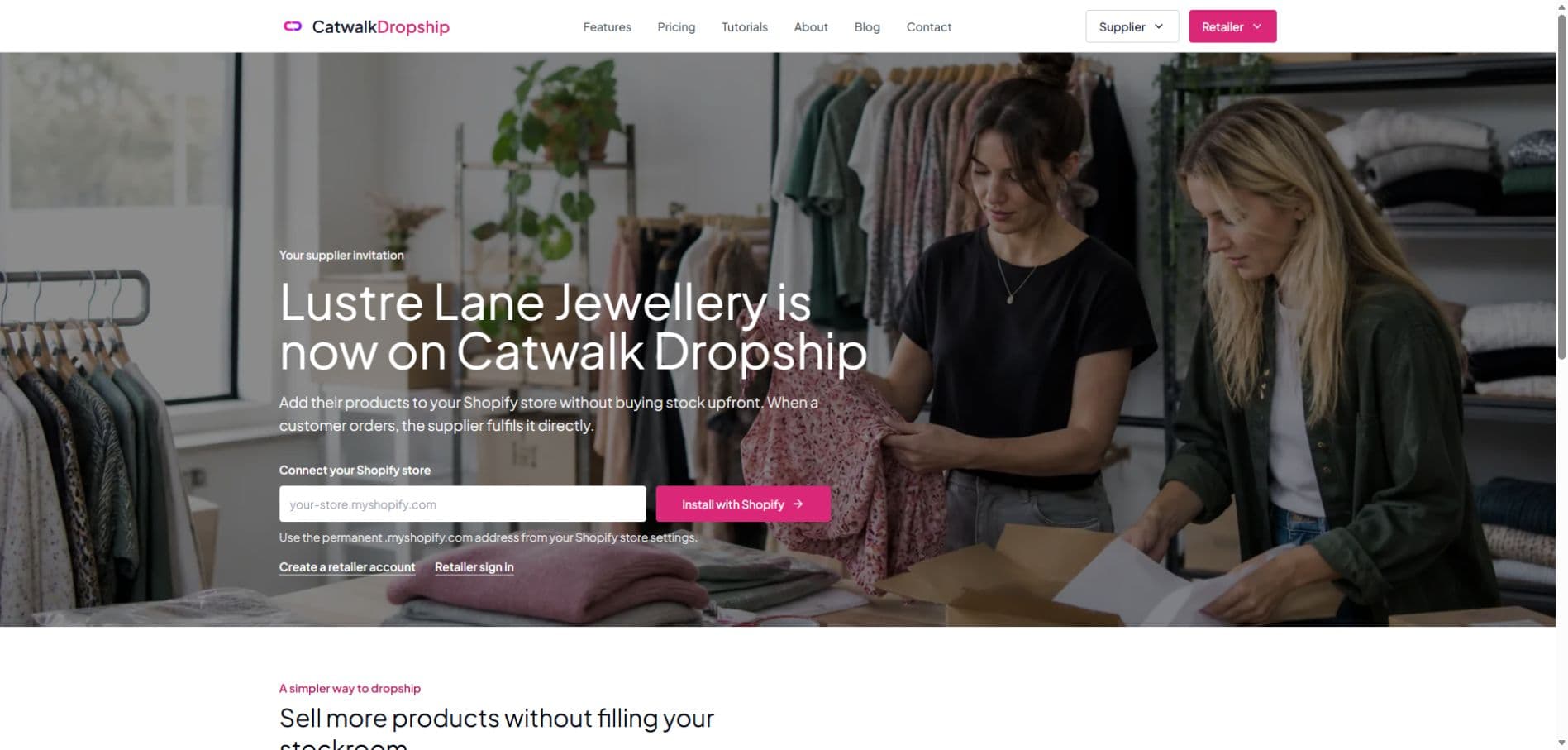
Public retailer invitation page for a supplier

A branded page for your retailers

Retailers can review the supplier offer, connect their Shopify store, and preserve the Direct relationship during installation.

Launch checklist

Ready for the first retailer order?

Keep stock and dispatch information current. Retailers rely on it when choosing products for their Shopify stores.

Invitation accepted and password created
Business, warehouse, and returns details saved
Single-unit and plain-dispatch confirmations complete
Pack ratios and single-unit stock checked
Product images and descriptions authorised for retailer use
Dispatch carrier and tracking process agreed with your team
Stripe business verification and bank payout setup complete
Catwalk Dropship catalogue review completed

Ready to join the supplier network?

Apply online, or speak to us about an assisted catalogue setup.